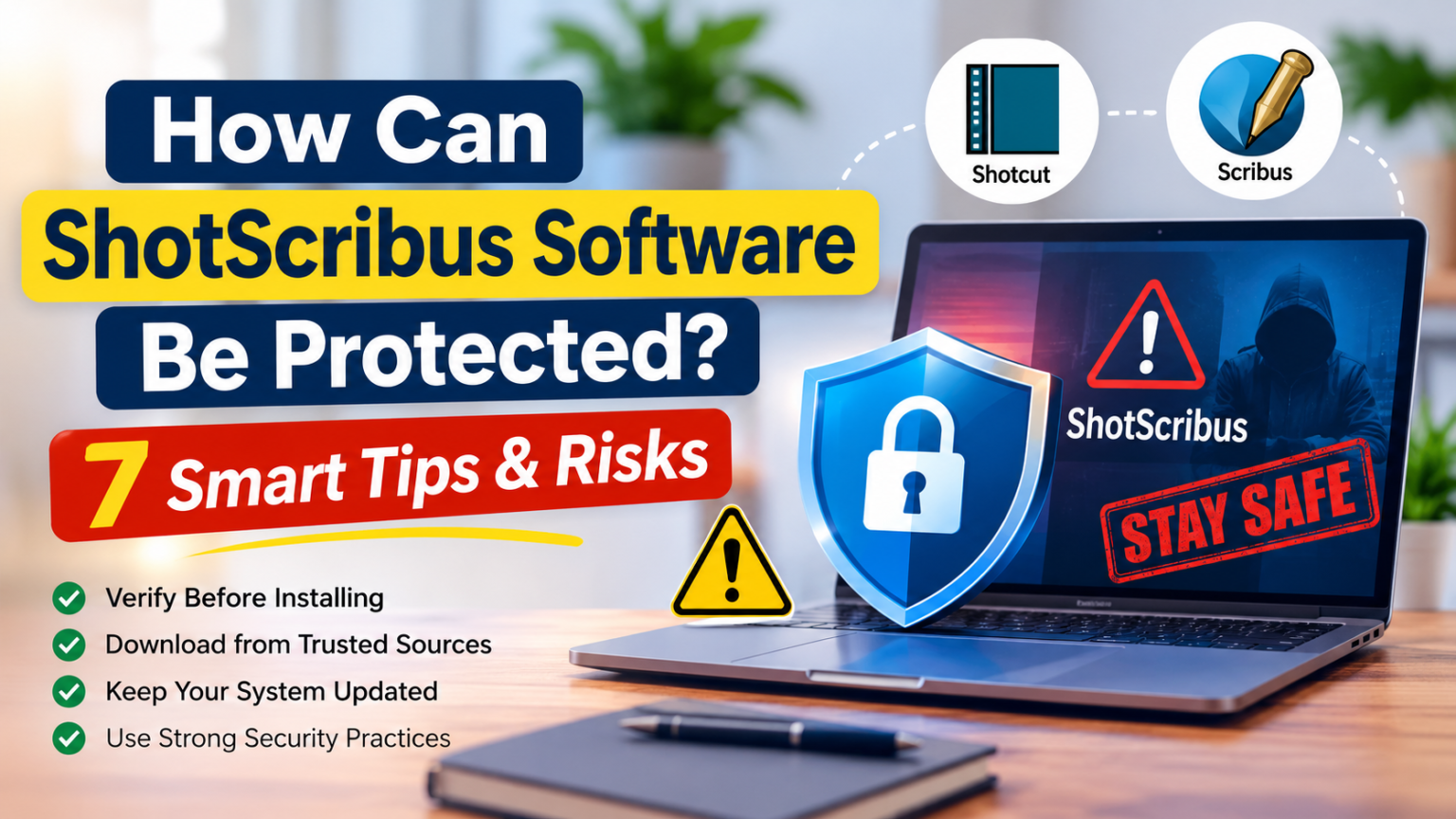
How can shotscribus software be protected? The answer starts with verifying the software, downloading applications from trusted sources, and securing the device where they are installed. Software security is especially important when an unfamiliar application uses a name similar to established programs.
ShotScribus is a name associated with software safety concerns. MacPaw describes it as unsafe software that may be used to trick people into downloading applications that could contain malware. Its name also resembles two legitimate open-source applications: Shotcut, a video editor, and Scribus, a desktop publishing program.
This distinction matters. Users should not assume that an unfamiliar installer is safe simply because its name resembles a trusted application. This guide explains seven practical ways to protect your device, personal information, and creative files while avoiding suspicious software downloads.
What Is ShotScribus Software?
ShotScribus is discussed online as a potentially unsafe software download. According to MacPaw’s removal guide, scammers may use the name to mislead users into installing software that could contain malware.
It is important to distinguish it from two established applications:
- Shotcut: An open-source video editor used to create and edit videos.
- Scribus: An open-source desktop publishing application for designing brochures, magazines, newsletters, and other documents.
Both are separate projects with their own official websites and download sources.
The security concern is that an unfamiliar installer may imitate legitimate software, bundle unwanted applications, or expose a computer to harmful files. Therefore, users should verify an application’s identity before installing it.
How Can ShotScribus Software Be Protected? 7 Essential Tips
Since users should not rely on unverified ShotScribus security features, the following measures focus on protecting the computer, downloaded files, and personal information.
1. Verify the Software Before Installing It
Always confirm the identity of an application before downloading or installing it.
A professional-looking website, familiar name, or attractive download button does not prove that a program is legitimate. Check the developer’s identity, official website, product documentation, and available release information.
If you need video editing software, visit the official Shotcut website. For desktop publishing, use the official Scribus website.
Before installation, ask yourself:
- Is the developer clearly identified?
- Does the website match the official project?
- Is the application name correct?
- Does the download page provide reliable installation information?
- Are there suspicious redirects or unexpected permissions?
If you cannot verify the software, do not install it. Choosing a trusted alternative is safer than experimenting with an unfamiliar application.
2. Download Software From Official Sources
Unofficial download websites may distribute modified installers or bundle additional applications with legitimate programs.
To reduce this risk, download applications directly from their developers or from distribution platforms linked by the official project.
Follow these precautions:
- Avoid unfamiliar third-party download websites.
- Do not click advertisements that imitate download buttons.
- Check the complete website address before downloading.
- Avoid modified or cracked application versions.
- Review the file name and extension before opening it.
- Check digital signatures or checksums when the developer provides them.
Never disable your antivirus software just because a website instructs you to do so.
A trusted download source significantly reduces the chance of installing an unwanted or malicious application.
3. Keep Your Operating System and Applications Updated
Outdated software can contain security weaknesses that attackers may exploit. Regular updates help fix known vulnerabilities and improve system stability.
Keep your computer protected by following a consistent update routine.
Update your operating system: Install security updates for Windows or macOS as soon as practical.
Update your browser: Modern browsers include security improvements that help protect against malicious websites and downloads.
Update legitimate applications: Use official update channels rather than unfamiliar pop-ups.
Remove unsupported software: Applications that no longer receive security updates may create unnecessary risks.
Updates are especially important when working with downloaded documents, videos, images, and other files.
Avoid installing updates from unexpected emails or suspicious websites. Always verify the source first.
4. Use Reliable Antivirus and Malware Protection
A reputable antivirus solution can help identify suspicious downloads, harmful files, and potentially unwanted applications.
Enable real-time protection and keep security definitions updated. Scan unfamiliar downloads before opening them, and investigate security warnings rather than ignoring them.
Useful precautions include:
- Run regular full-system scans.
- Enable automatic security updates.
- Keep firewall protection active.
- Review antivirus alerts carefully.
- Avoid installing multiple security products that may conflict.
- Do not allow unknown applications to bypass security checks.
Remember that antivirus software cannot prevent every attack. It should be part of a broader security routine that includes trusted downloads, strong passwords, and regular backups.
5. Protect Against Spear Phishing and Fake Download Links
Not every software threat begins with a download website. Some attackers use emails, messages, or fake support notifications to persuade users to install unsafe applications.
A spear-phishing message is designed for a particular person or organization. It may mention a familiar company, colleague, project, or software update to appear trustworthy.
For example, someone might receive a message claiming that a video editor needs an urgent security update. The message may contain a link to a fake download page.
Before clicking any link:
- Check the sender’s full email address.
- Be cautious about urgent installation requests.
- Visit the official software website independently.
- Avoid opening unexpected attachments.
- Never share passwords or verification codes.
- Confirm unusual requests through a separate trusted channel.
For a deeper explanation of these targeted attacks, read Digitals Valley’s guide on what spear phishing is and how to recognize it.
The Cybersecurity and Infrastructure Security Agency (CISA) also recommends practical measures against phishing, including caution with suspicious links and attachments, stronger account protection, and security awareness. Read its Phishing Guidance: Stopping the Attack Cycle at Phase One.
6. Secure Personal Files and User Accounts
Video projects, design documents, photographs, and business files may contain valuable information. Protecting these files is just as important as protecting the application itself.
Start by using strong, unique passwords for your computer and online accounts. A password manager can help you create and manage them securely.
You should also:
- Enable multi-factor authentication (MFA) wherever available.
- Use separate accounts for everyday work and administration.
- Avoid granting unnecessary application permissions.
- Lock your computer when leaving your workspace.
- Restrict access to confidential folders.
- Review account activity for unfamiliar sign-ins.
Do not give an unfamiliar application administrator access unless there is a verified reason. Limiting permissions can reduce the damage if a program behaves unexpectedly.
7. Back Up Important Files and Monitor Your Device
Even with strong security measures, unexpected problems can occur. Malware, accidental deletion, hardware failure, or software errors may damage important files.
Regular backups make recovery easier.
Use a simple backup routine:
- Organize important documents and project files.
- Back them up regularly to an external drive or trusted cloud service.
- Keep an additional copy separate from your main computer.
- Protect cloud storage with a strong password and MFA.
- Test your backups to confirm that files can be restored.
Also watch for unusual system behavior, such as unexpected pop-ups, unfamiliar browser extensions, unknown startup applications, or sudden changes to browser settings.
If you notice suspicious activity, stop using the unfamiliar application and run a security scan. If you believe your accounts or personal information have been exposed, change important passwords from a separate trusted device.
Common Security Risks of Unverified Software
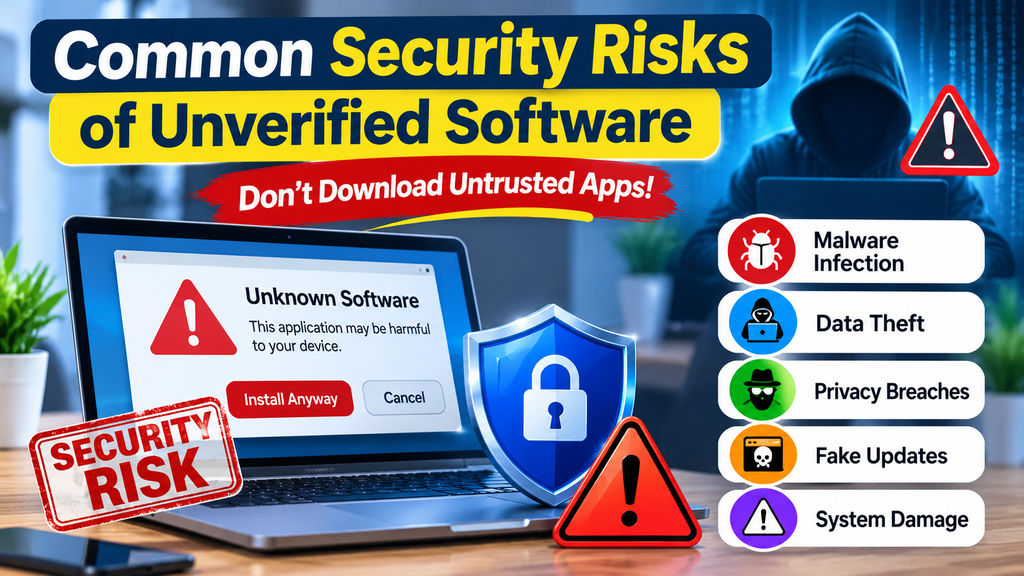
Understanding possible threats helps users make better installation decisions.
Malware and Unwanted Programs
An unsafe installer may contain malicious code or bundle unwanted applications. These programs can interfere with normal computer operations or expose personal information.
Privacy and Data Theft
Some malicious applications may attempt to access personal files, browser information, or account details without a legitimate reason.
Fake Updates and Download Pages
Fraudulent websites may display fake update messages or misleading download buttons to persuade users to install harmful files.
Browser Hijacking
Unwanted software may change browser settings, install suspicious extensions, or redirect searches to unfamiliar websites.
File Damage and Data Loss
Malware or system problems may damage documents, interrupt creative work, or make important files inaccessible.
These are general risks associated with unverified software. They should not be interpreted as proof that every file or website mentioning ShotScribus has the same behavior.
Advantages and Disadvantages of Strong Software Security
Following security best practices offers several benefits, although it requires some effort.
Advantages
- Reduces the risk of installing unsafe software.
- Helps protect personal and business information.
- Improves device security and reliability.
- Makes important files easier to recover.
- Encourages safer browsing and downloading habits.
Disadvantages
- Regular updates require time and internet access.
- Antivirus software may use system resources.
- Backups require additional storage.
- Security checks can make installations slower.
- Some security tools may produce false warnings.
These limitations are manageable. A consistent security routine is generally more effective than installing several security tools without understanding how they work.
What to Do If You Have Already Installed ShotScribus
If an application carrying the ShotScribus name is already installed on your computer, avoid opening it until you have verified what it is.
Take these steps:
- Identify the application and the website from which it was downloaded.
- Avoid granting it additional permissions.
- Run a full scan using reputable security software.
- Review unfamiliar applications and browser extensions.
- Remove the suspicious application using appropriate operating system procedures.
- Check important accounts for unusual activity.
- Change exposed passwords from a separate, trusted device.
Mac users can consult MacPaw’s ShotScribus removal guide for additional information.
If the application has administrator access or the device contains sensitive business information, seek help from a qualified technical professional. Do not randomly delete system files because this could damage the operating system.
Best Practices for Using Shotcut and Scribus Safely
If your original goal was to use a video editor or desktop publishing application, choose the legitimate program that matches your needs.
For Shotcut:
- Download it from the official Shotcut website.
- Check installation requirements and available releases.
- Keep the application updated.
- Avoid modified installers from unknown sources.
- Back up important video projects.
For Scribus:
- Download it through the official Scribus project website.
- Check the source of the installation package.
- Follow the project’s installation guidance.
- Keep publication files and linked images backed up.
- Avoid opening unexpected documents from unknown senders.
These steps help protect your work without relying on unverified ShotScribus features or security claims.
Frequently Asked Questions
1. How can ShotScribus software be protected?
Verify the software’s identity, avoid unofficial downloads, update your operating system, use reputable antivirus protection, secure your accounts, and back up important files.
2. Is ShotScribus an official version of Shotcut or Scribus?
Do not assume that it is. Shotcut and Scribus are separate legitimate applications. ShotScribus is discussed in security guidance as an unsafe software name, so verify any installer before using it.
3. Is it safe to download ShotScribus?
Downloading an unverified installer is not recommended. Use the official Shotcut or Scribus website if you need video editing or desktop publishing software.
4. What should I do if ShotScribus is already installed?
Avoid opening it, scan your device with trusted security software, and follow appropriate removal guidance. If you suspect account exposure, change important passwords from a trusted device.
5. Are Shotcut and Scribus safe alternatives?
Shotcut and Scribus are established open-source projects. Download them from their official websites and follow normal security practices when installing and using them.
Conclusion
Understanding how can shotscribus software be protected begins with verifying the application before installing it. Since the ShotScribus name is associated with software safety concerns, users should avoid unfamiliar installers and rely on trusted software sources.
Keep your operating system updated, use reliable malware protection, secure personal files, recognize spear-phishing attempts, and maintain regular backups. If you have already installed an unfamiliar application, investigate it carefully and follow trusted removal guidance.
Your creative projects and personal information deserve consistent protection. The long-term destiny of your digital files depends partly on the security decisions you make today.