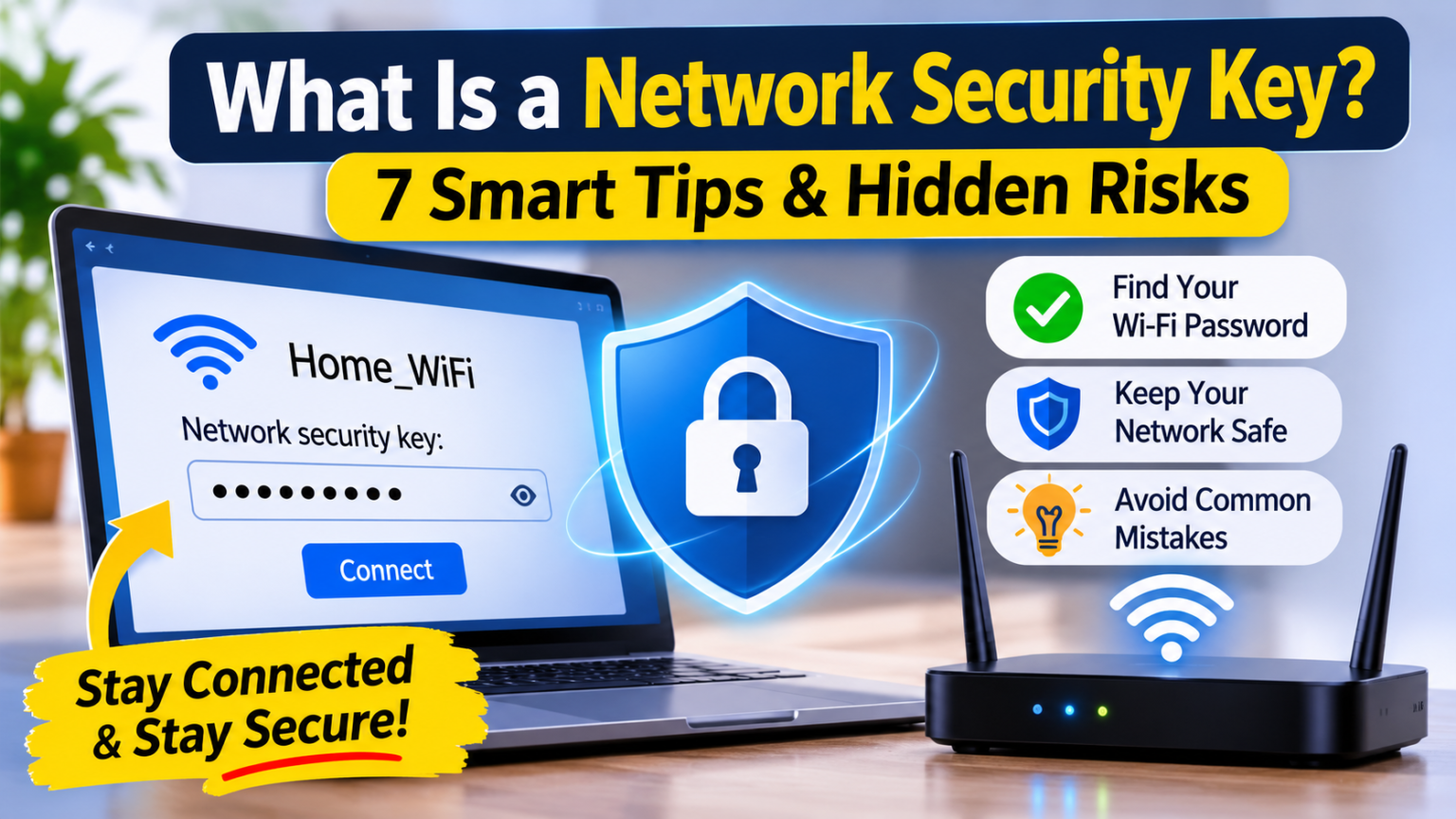
What is a network security key? It is one of the most important details you need when connecting a device to a protected Wi-Fi network. If you have ever connected a laptop, smartphone, tablet, or smart TV to Wi-Fi, you have probably encountered this term.
Many people become confused when their computer displays a message asking them to enter a network security key. They may wonder whether it is different from a Wi-Fi password, where to find it, or why their device refuses to accept it.
Fortunately, finding and using a network security key is usually straightforward. You can check your router, view saved network information on a connected device, or access your router settings.
In this complete guide, you will learn what a network security key means, how it works, where to find it on different devices, and how to fix common connection problems. You will also discover practical ways to protect your wireless network from unauthorized access.
What Is a Network Security Key?
A network security key is the password or passphrase used to connect a device to a protected wireless network. It allows authorized users to access Wi-Fi while preventing people without permission from joining the network.
In simple terms, a network security key is usually the same as your Wi-Fi password.
For example, imagine that you have a home Wi-Fi network named “Home_WiFi.” When you connect your smartphone or laptop, the device asks for a password. That password is your network security key.
The key works with your router’s wireless security protocol to authenticate devices and help protect information transmitted over the network.
Depending on your router and security settings, you may see different names for the same credential:
- Wi-Fi password
- Wireless network password
- WPA key
- WPA2 or WPA3 password
- Network key
- Pre-shared key (PSK)
Although these terms can seem confusing, they generally refer to the credential used to join a password-protected Wi-Fi network.
How Does a Network Security Key Work?
A network security key works with your router’s wireless security system. When you enter the correct password, your device and router complete an authentication process before establishing a connection.
Here is how the process generally works:
- Select a Wi-Fi network: Your device displays available wireless networks. Choose the network you want to join.
- Enter the security key: Type the correct Wi-Fi password when your device requests it.
- Authentication begins: Your device and router use the wireless security protocol to verify access.
- A secure connection is established: If authentication succeeds, your device can communicate with the network.
Modern Wi-Fi networks commonly use WPA2 or WPA3 security. WPA3 offers improved protections against certain password-guessing attacks and is generally preferred when compatible devices support it.
A network security key therefore does more than provide internet access. It is also an important part of protecting your wireless connection.
Where Can You Find Your Network Security Key?
Finding your network security key depends on your router, operating system, and whether your device has previously connected to the network.
Here are six practical ways to locate it.
1. Check the Back or Bottom of Your Router
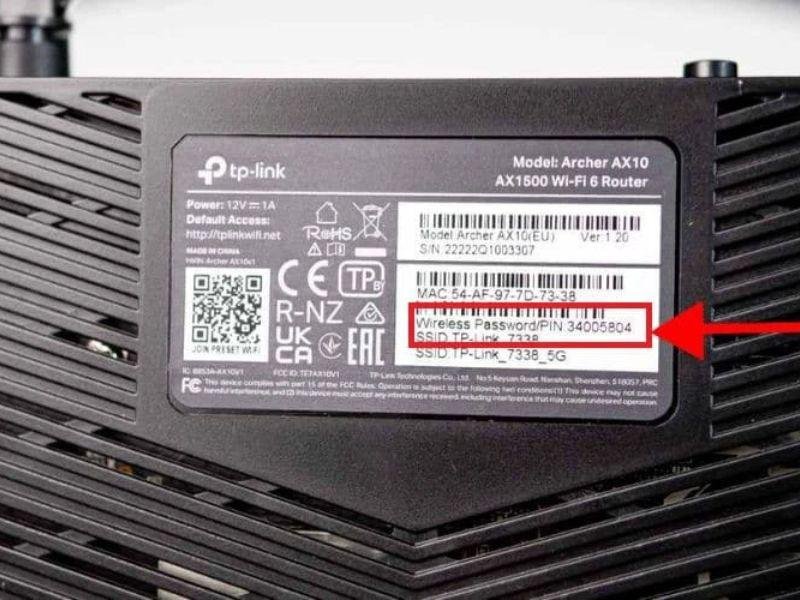
[Insert the original router image here]
Checking your router is usually the easiest starting point.
Most internet routers have a label on the back, bottom, or side. This label may display the default Wi-Fi network name and password.
Look for terms such as:
- Wi-Fi Password
- Wireless Password
- WPA Key
- Network Key
- Security Key
- SSID
The SSID is your wireless network name, while the security key is the password used to connect.
Important: The printed password only works if nobody has changed the router’s original Wi-Fi settings. If you created a new password during installation, use that updated password instead.
2. How to Find a Network Security Key on Windows 11
[Insert the original Windows 11 image here]
If your Windows 11 computer is already connected to the Wi-Fi network, you can view its saved password through Settings.
Follow these steps:
- Open the Windows Settings application.
- Select Network & internet.
- Open Properties for your connected Wi-Fi network.
- Find the Wi-Fi network password option.
- Select Show to reveal the saved password.
You can also check saved networks through the Manage known networks section.
This method is useful when you have forgotten your Wi-Fi password but still have access to a computer that previously connected to the network.
For additional instructions, visit Microsoft’s official guide to finding a Wi-Fi password in Windows.
3. How to Find a Network Security Key on Windows 10
Windows 10 provides another way to view a saved wireless password through Control Panel.
Follow these instructions:
- Open Control Panel.
- Select Network and Internet.
- Open Network and Sharing Center.
- Click your connected Wi-Fi network name.
- Select Wireless Properties.
- Open the Security tab.
- Check the Show characters option.
Your saved password should appear in the Network security key field.
You can then use it to connect another authorized device to the same wireless network.
4. How to Find Your Network Security Key on Android
[Insert the original Android image here]
Many modern Android smartphones allow users to share saved Wi-Fi information through a QR code.
The exact steps may vary depending on your phone manufacturer and Android version.
Generally, follow these instructions:
- Open your phone’s Settings.
- Select Wi-Fi or Network & Internet.
- Tap the connected wireless network.
- Select Share or the QR code option.
- Verify your identity if requested.
- View or scan the QR code to access the network information.
Some Android devices display the password directly below the QR code. Others may require another device to scan it.
If you cannot find this option, check your phone manufacturer’s instructions.
5. How to Find Your Network Security Key on an iPhone
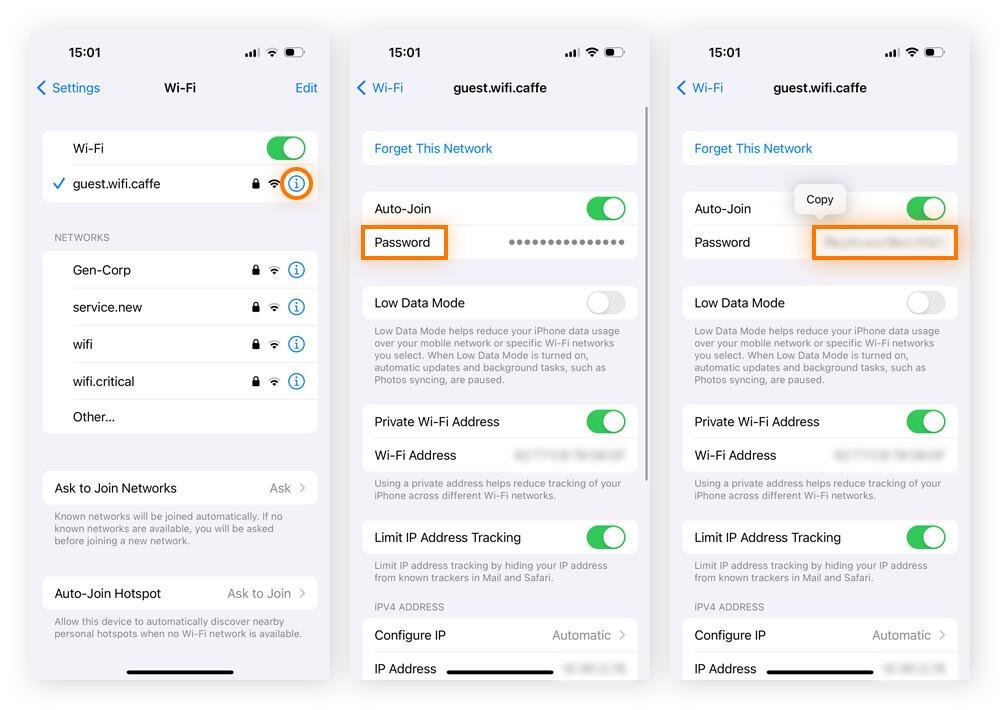
[Insert the original iPhone image here]
Apple provides a built-in way to view saved Wi-Fi passwords on supported iPhone versions.
Try the following steps:
- Open Settings.
- Select Wi-Fi.
- Find your connected or previously saved network.
- Tap the information icon beside the network name.
- Tap the Password field.
- Authenticate using Face ID, Touch ID, or your device passcode.
Your saved Wi-Fi password should become visible.
This feature makes it easier to retrieve a forgotten network security key without accessing your router’s administration settings.
6. Find the Network Security Key Through Your Router Settings
If the router label does not show your current password, you may be able to find it through the router’s administration page.
Here is the general process:
- Connect your computer or smartphone to the router.
- Open a web browser.
- Enter your router’s local IP address.
- Sign in using your router administrator credentials.
- Find Wireless Settings or Wi-Fi Settings.
- Open the Wireless Security section.
- Look for the password, passphrase, or pre-shared key field.
Common router addresses include 192.168.0.1 and 192.168.1.1, although your router may use a different address.
The router administrator password is not the same as its Wi-Fi security key. Never confuse these two credentials.
If you cannot access the administration page, consult your router manufacturer’s instructions or contact your internet service provider.
What Are the Different Types of Network Security Keys?
Network security keys work with different wireless security standards. Understanding these standards can help you choose safer settings for your home or business network.
1. WEP (Wired Equivalent Privacy)
WEP is an older wireless security standard designed to protect wireless communications. However, it has serious security weaknesses and is no longer considered safe for modern networks.
If your router still uses WEP, consider upgrading its security settings.
2. WPA (Wi-Fi Protected Access)
WPA was introduced to improve the weaknesses of WEP. It offered better protection, but it is now outdated compared with newer wireless security standards.
3. WPA2
WPA2 became a widely adopted Wi-Fi security standard. It uses stronger encryption and provides better protection than WEP and the original WPA.
Many existing routers and devices still support WPA2.
4. WPA3
WPA3 is a newer Wi-Fi security standard that improves protection against password-guessing attacks and strengthens wireless authentication.
If your router and connected devices support WPA3, it is generally the preferred option for a modern home network.
Network Security Key vs. Wi-Fi Password: Are They Different?
Many users believe a network security key and a Wi-Fi password are two different things. However, in a typical home wireless network, they usually mean the same credential.
There is one important distinction worth understanding.
| Term | Purpose |
| Network security key | Allows authorized devices to join protected Wi-Fi |
| Wi-Fi password | Common name for the network security key |
| Router admin password | Allows access to router configuration settings |
| SSID | Identifies the wireless network |
| WPS PIN | Helps connect compatible devices through Wi-Fi Protected Setup |
For example, if Windows asks for a network security key, enter your Wi-Fi password rather than your router administrator password.
Understanding these differences can prevent unnecessary connection problems.
What to Do When Your Network Security Key Is Not Working
Sometimes, your device may display a message saying that the network security key is incorrect or does not match.
This problem can occur for several reasons. Fortunately, you can try a few simple solutions before contacting technical support.
Check Your Password Carefully
A small typing mistake can prevent your device from connecting. Check uppercase and lowercase letters, numbers, and special characters.
Also, make sure you are entering the password for the correct Wi-Fi network.
Restart Your Router
Temporary router problems can interrupt wireless connections.
Turn off your router, wait approximately 30 seconds, and turn it back on. Allow it to reconnect before trying again.
Forget the Wi-Fi Network
Your device may have an outdated password saved.
Open your Wi-Fi settings, select the affected network, and choose Forget. Then reconnect and enter the current password.
Update Your Router Settings
If you recently changed your Wi-Fi password, make sure every device uses the updated key.
You should also check whether your router’s security settings are compatible with your connected devices.
For additional troubleshooting, see Microsoft’s guide to fixing Wi-Fi connection problems.
Benefits and Risks of Using a Network Security Key
A network security key offers several important advantages, but its effectiveness depends on how you manage it.
Benefits
- Prevents unauthorized access: A strong password makes it harder for strangers to join your private wireless network.
- Protects connected devices: It adds an important layer of protection for laptops, smartphones, smart TVs, and other connected equipment.
- Supports wireless privacy: Modern Wi-Fi security protocols help protect information transmitted over the network.
- Controls network access: You can change your password when you no longer want particular users to have access.
Potential Risks
- Weak passwords: Simple passwords are easier to guess or crack.
- Password sharing: Sharing your Wi-Fi password with too many people reduces control over network access.
- Outdated security: Older standards such as WEP can expose wireless networks to security threats.
- Unchanged default credentials: Keeping factory-default passwords may make unauthorized access easier.
A network security key is not a complete cybersecurity solution. You should also keep your router updated, use modern encryption, and secure the router’s administrator account.
7 Smart Tips to Keep Your Network Security Key Safe
Protecting your Wi-Fi password does not require advanced technical knowledge. A few sensible habits can make your wireless network safer.
- Create a strong password: Use a long, unique passphrase that is difficult to guess.
- Avoid personal information: Do not use your name, birthday, phone number, or common words.
- Choose WPA3 when available: Use modern wireless security rather than outdated standards.
- Change default credentials: Replace factory-set Wi-Fi and router administrator passwords.
- Limit password sharing: Give access only to people who genuinely need it.
- Update router firmware: Install security updates provided by your router manufacturer.
- Use a guest network: Allow visitors to connect through a separate guest Wi-Fi network when your router supports it.
These practices can help reduce unnecessary security risks and give you better control over your internet connection.
Good wireless protection is also part of a broader cybersecurity strategy. Businesses and individuals who want to understand additional protection measures can explore ALE cybersecurity for more information about securing digital environments.
Frequently Asked Questions (FAQs)
1. What is a network security key on Wi-Fi?
A network security key is the password used to connect an authorized device to a protected Wi-Fi network. It is commonly called a Wi-Fi password or wireless password.
2. Where can I find my network security key?
Check the label on your router first. You can also view a saved Wi-Fi password through compatible Windows, Android, iPhone, or Mac settings, or access your router’s administration interface.
3. Is a network security key the same as a router password?
No. A network security key connects devices to Wi-Fi, while a router administrator password provides access to the router’s configuration page.
4. Why does my computer keep saying the network security key is incorrect?
This message can appear because of typing mistakes, an outdated saved password, a changed router password, or wireless compatibility problems. Check the password and reconnect to the correct network.
5. Can I change my network security key?
Yes. You can change it through your router’s administration page or the manufacturer’s router application. After changing it, reconnect your devices using the new password.
Conclusion
Understanding what is a network security key makes connecting devices to Wi-Fi much easier. It is generally the password that allows authorized devices to access a protected wireless network.
You can usually find it on your router, through saved network settings on your computer or smartphone, or in your router’s administration interface.
However, finding the password is only one part of wireless security. Using a strong passphrase, choosing WPA3 when supported, updating router firmware, and limiting password sharing can help protect your connection.
Whether you use Wi-Fi at home, at work, or for everyday browsing, managing your network security key properly is a simple but valuable step toward a safer digital experience.